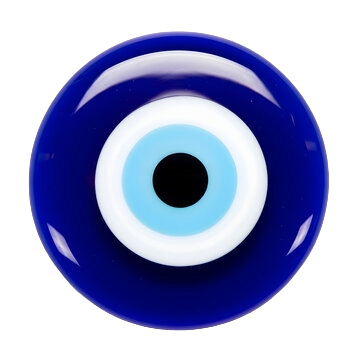

?
Make Your Own Charm
Turn any image into a charm that swings from your Mac menu bar. A photo, a logo, a cartoon, a pet — if it has a transparent background, it's a charm.
Turn any image into a charm that swings from your Mac menu bar. A photo, a logo, a cartoon, a pet — if it has a transparent background, it's a charm.
The key to a great charm is a transparent background. Here's how to get there in minutes.
Choose any image you love — a photo, an emoji, your pet, a logo, a piece of art, or any icon. Square images work best and look great as a swinging pendant.
A transparent background makes the charm look like it's really hanging from the string. Both tools below are free and take about 5 seconds.
Always save as PNG — it's the only common format that preserves transparency. JPEG flattens the background to white. Aim for around 512 × 512 px for sharp results at any size.
No Photoshop needed. These work right in your browser.
Quick tips for the best results
Upload your charm image below. We review every submission and add the best ones to the Screen Charms library — your charm could hang in someone's menu bar around the globe.
Custom image is a PRO feature. One-time $4.99 — no subscription.
macOS 13+ · Apple Silicon & Intel